
01Quick start
Trace is built around one loop: item → place / category → batch expiry → reminder. Log the dozen or so things you use most, then each day you only need to glance at the expiry check — the app does the rest.
The four bottom tabs
The bottom of the screen is a floating capsule dock with four pages:
| Tab | What it is for |
|---|---|
| Home | The overview: total items, near-expiry and expired counts, plus shortcuts to Statistics and About |
| Items | The full item list, with search, four views, advanced filters and bulk actions |
| Places | Browse items by where they are kept, with collapse, drag-sort, search and multi-select |
| Mine | Account, reminder settings, data management, transfers, sharing settings, agreements and feedback |
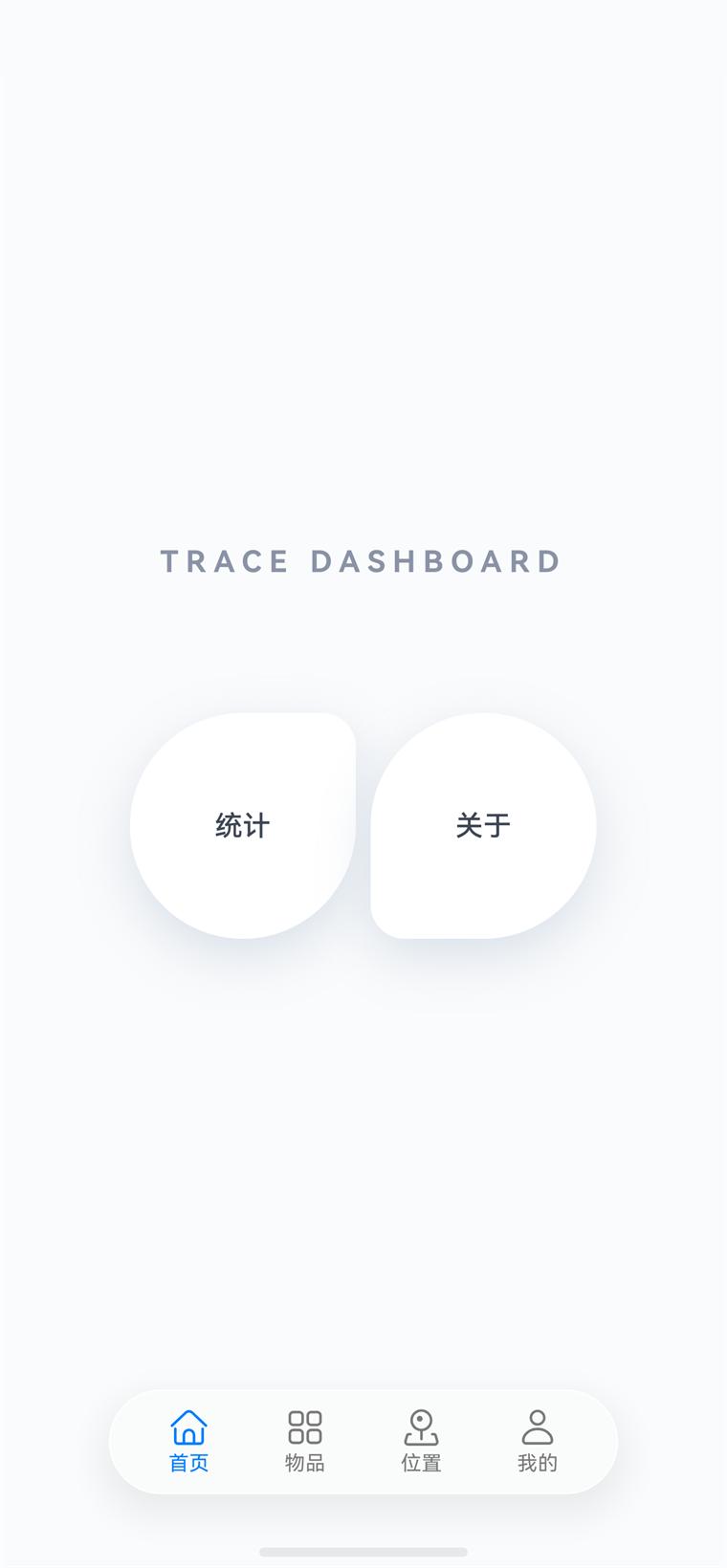
Smart grip: when the device supports it, the app works out which hand you are holding the phone in and moves the floating button and bottom dock to that side. Turn it off under Mine → Smart grip; unsupported devices skip it automatically.
02Items
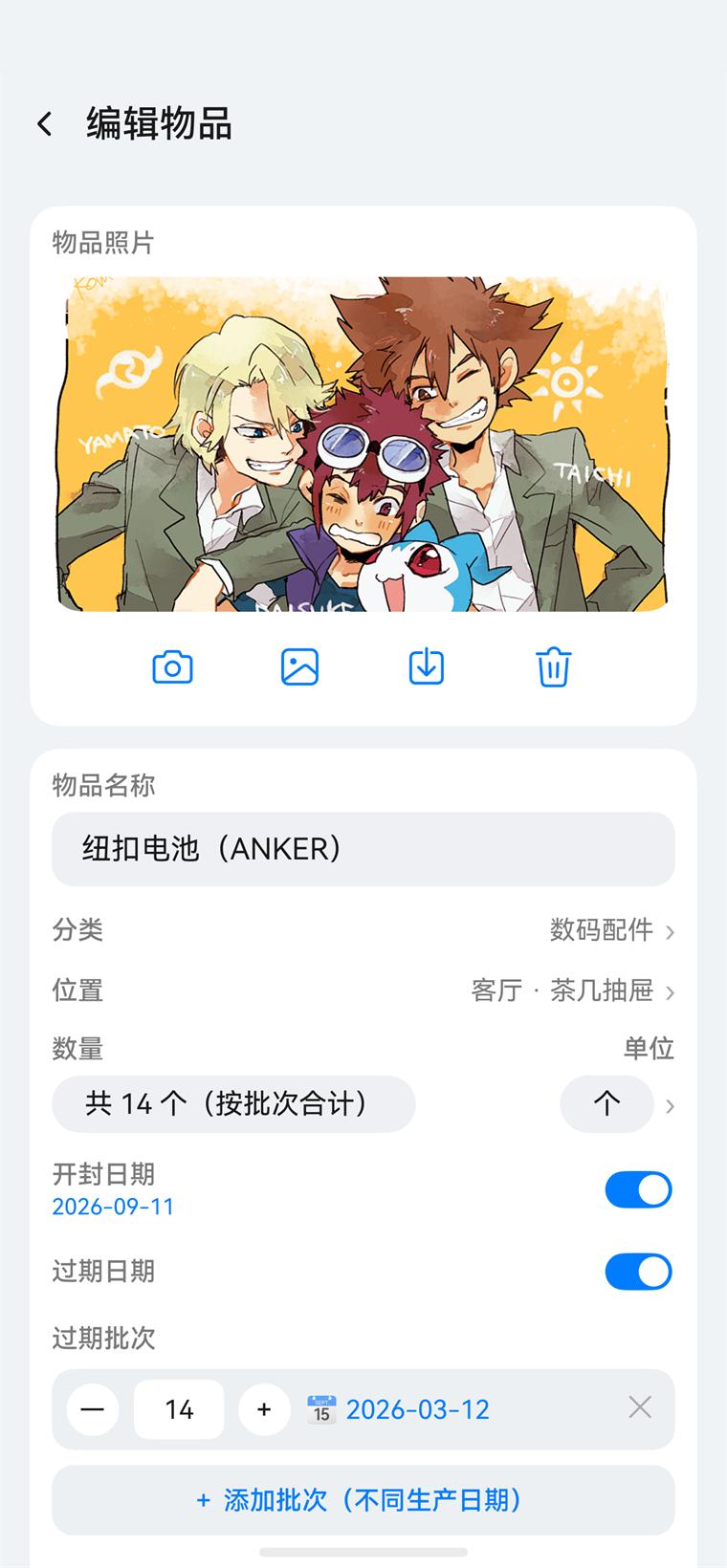
Each item records a photo, name, category, place, quantity, expiry and notes. A quick photo is worth it — one glance tells you which one it is.
Adding an item
-
Tap + at the bottom right
On the Items page or a place detail page, tap the floating button at the bottom right to open Add item.
-
Add a photo
Tap the camera icon in the Item photo section to shoot one now, or the gallery icon to pick one from your library. Photos are compressed and thumbnailed automatically, so they will not eat your storage.
-
Fill in the basics
Name is required; tap Category and Place to pick from the lists. Quantity can carry a unit (for example “3 bottles”), chosen from the options maintained under Mine → Units.
-
Set expiry if needed
Turn on Expiry date and pick a date; Opened on covers items whose shelf life shortens once opened. Both show as badges on the list card.
-
Add notes and save
Use Notes for the specification, where you bought it or how to dispose of it; Favourite marks the items that need close attention. Tap Save at the top right.
Lists and filters
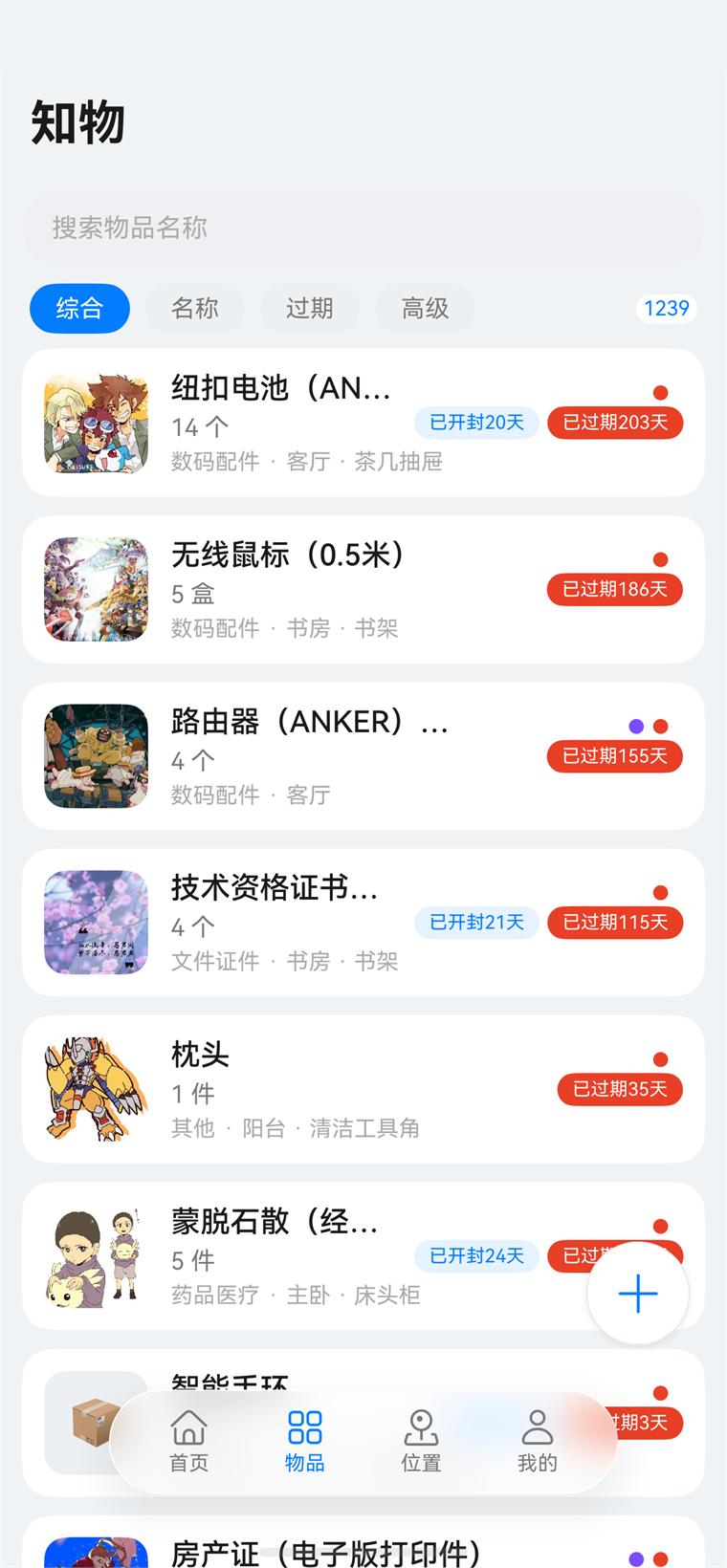
A search box sits at the top of the Items page, with the view switcher below it and the result count on the right. The four views are:
- All — the default order, taking pinned items, favourites and expiry status into account
- Name — sorted by name, handy when you know what you are looking for
- Expiry — sorted by due date, soonest first
- Advanced — opens the filter panel to combine conditions
Advanced filters offer three groups of conditions, which you can combine freely:
| Condition group | Values |
|---|---|
| Category | All / each category (including your own) |
| Place | All / Unfiled / each place, with sub-places shown as a full path such as “Living room · Coffee table drawer” |
| Status | All / Favourites only / Not favourited / Expired / Expiring soon / No expiry set / Opened / Unopened |
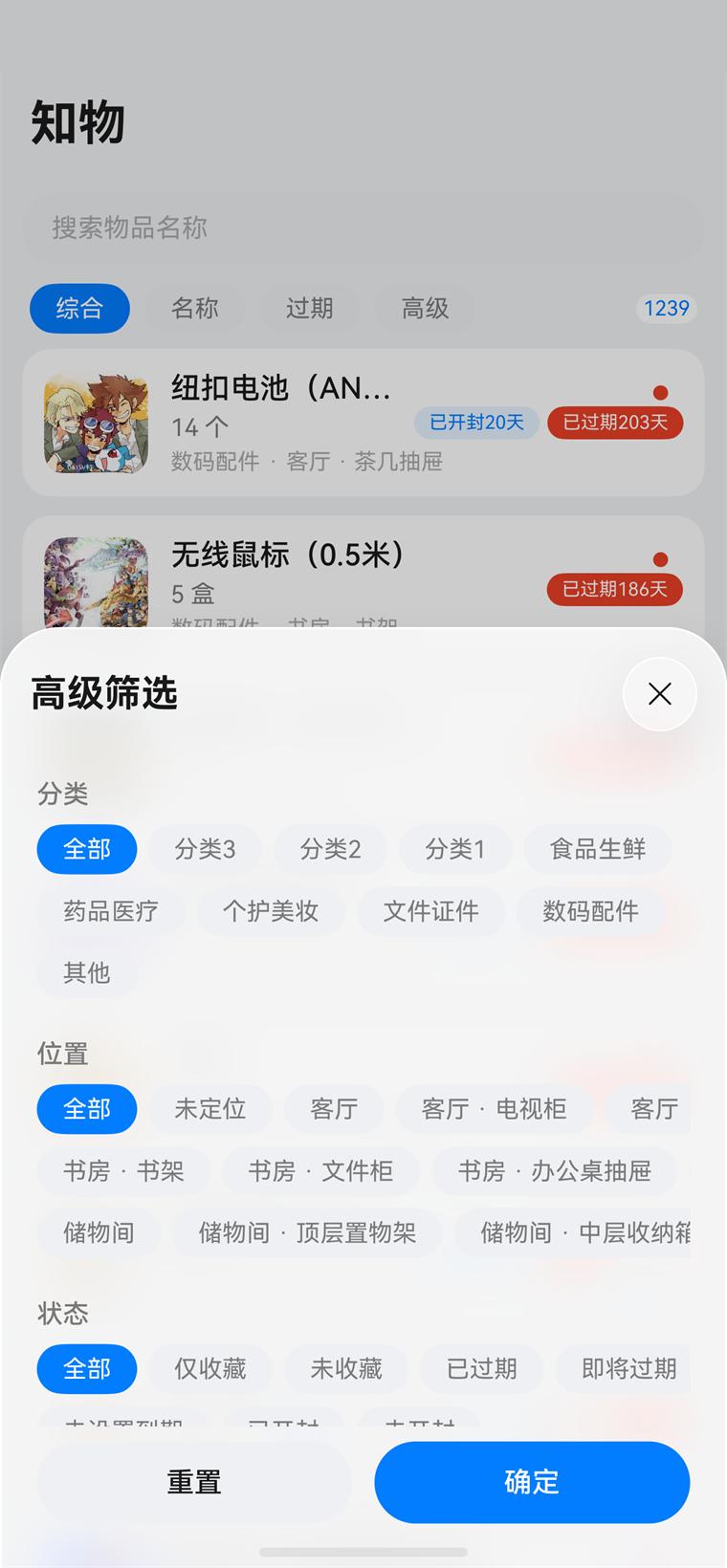
Tip: Reset at the bottom left of the filter panel clears every condition at once; Confirm on the right applies them and closes the panel.
Bulk and swipe actions
- Multi-select: long-press any card, then tap the others; a bulk action bar appears at the bottom
- Bulk actions: share, move to a place, favourite or unfavourite, and delete
- Swipe left: on a single card, swipe left to share, move, favourite or delete
- Confirmation: deleting an item or a place always asks twice, so nothing is removed by accident
03Places and categories
A place answers “where is it”, a category answers “what is it”. The two are independent: every item has exactly one place and one category.
Hierarchical places
Places nest two levels deep, for example:
- Top level: living room, kitchen, main bedroom, second bedroom, kids' room, study, main bathroom, storeroom
- Sub-places: living room · TV unit, living room · coffee table drawer, study · bookshelf, study · filing cabinet, storeroom · top shelf
On the Places page you can:
- Collapse / expand: tap a card that has sub-places to fold it away and keep long lists tidy
- Drag to sort: long-press a card and drag it; the order is saved
- Search: the box at the top filters by place name
- Multi-select: long-press to select several places and delete them in bulk
- Open a place: tap a card to see everything stored there
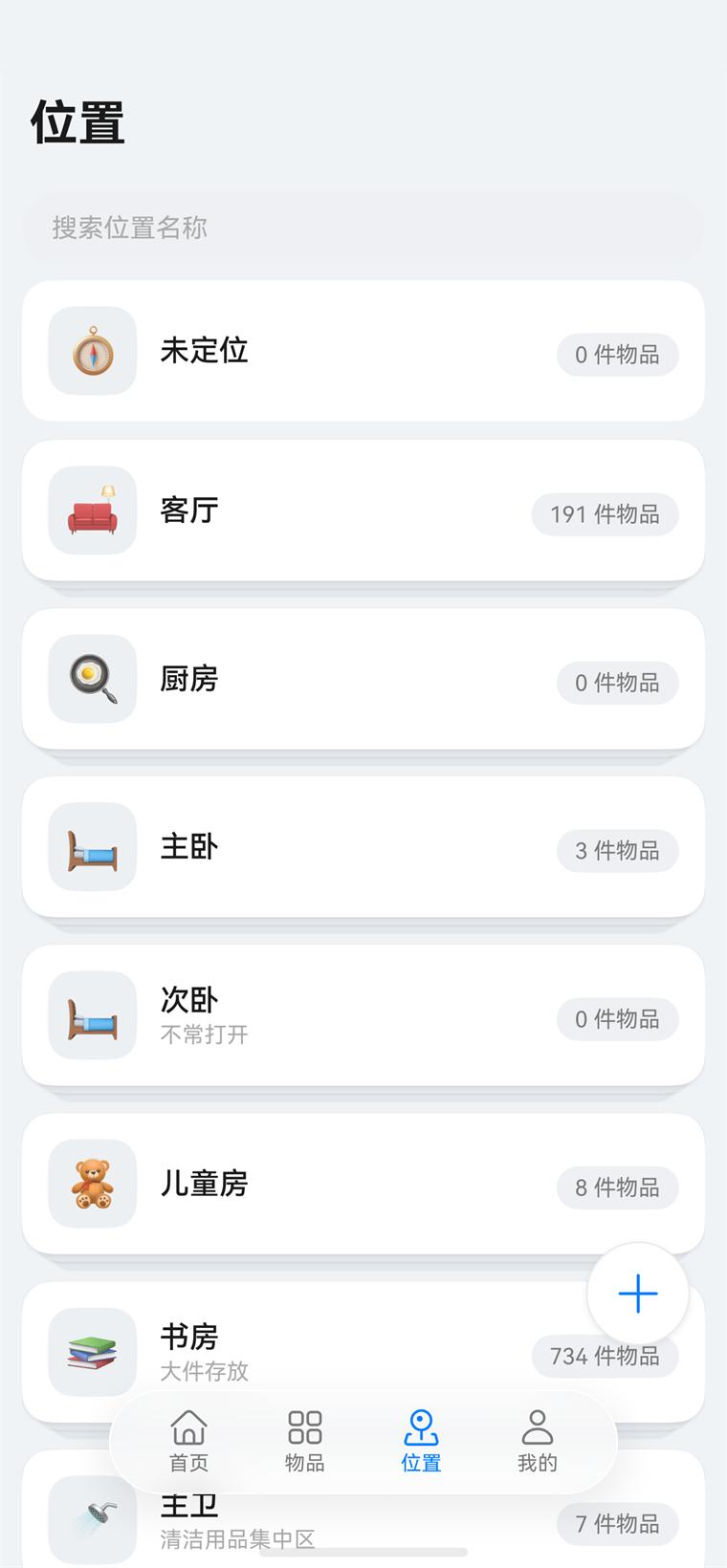
Note: a place that already has sub-places cannot be nested under another place — move or delete its sub-places first. Deleting a place does not delete the items in it; they become Unfiled.
Managing places
Mine → Manage places lets you add, edit and delete places. Fields include the name (for example “Fridge – chiller”), an icon and a description. Icons can be built-in or your own.
Managing categories
The app ships with six categories: Food, Medicine, Personal care, Documents, Digital accessories and Other. Mine → Manage categories lets you rename them, change their icons and add categories of your own.
Mine also offers these lists to maintain:
Icons
Custom icons available to categories and items
Units
Units for quantities (piece, box, bag, bottle, case, item…)
Reminder lead times
How many days ahead a near-expiry reminder fires (a whole number from 1 to 365)
04Expiry and batches
This is the heart of Trace: one product can record a quantity and an expiry date per production batch, so near-expiry is judged batch by batch instead of against one vague date.
Working with batches
In the Expiry batches section of the item editor you can add several batches to an item, each with its own quantity and expiry date. The item's total quantity is the sum of its batches.
Typical cases:
- You bought three boxes of the same medicine with different production dates — give each its own batch and expiry
- Stocked-up milk or snacks — the batch you opened first expires first, so reminders point at it naturally
- Shelf life that shortens after opening — record the opened-on date and combine it with the batch
Each batch can be shared, moved, favourited or deleted on its own.
Reminder thresholds
Two settings decide what counts as near-expiry:
- Global default — Mine → Expiry threshold sets how many days remaining make a card show a near-expiry badge. Enter a whole number from 0 to 365, 0 means remind only on the day it expires.
- Per item — Expiry reminder in the item editor sets the lead time for that item, overriding the global default. The options come from the reminder lead times you maintain.
Expiry check
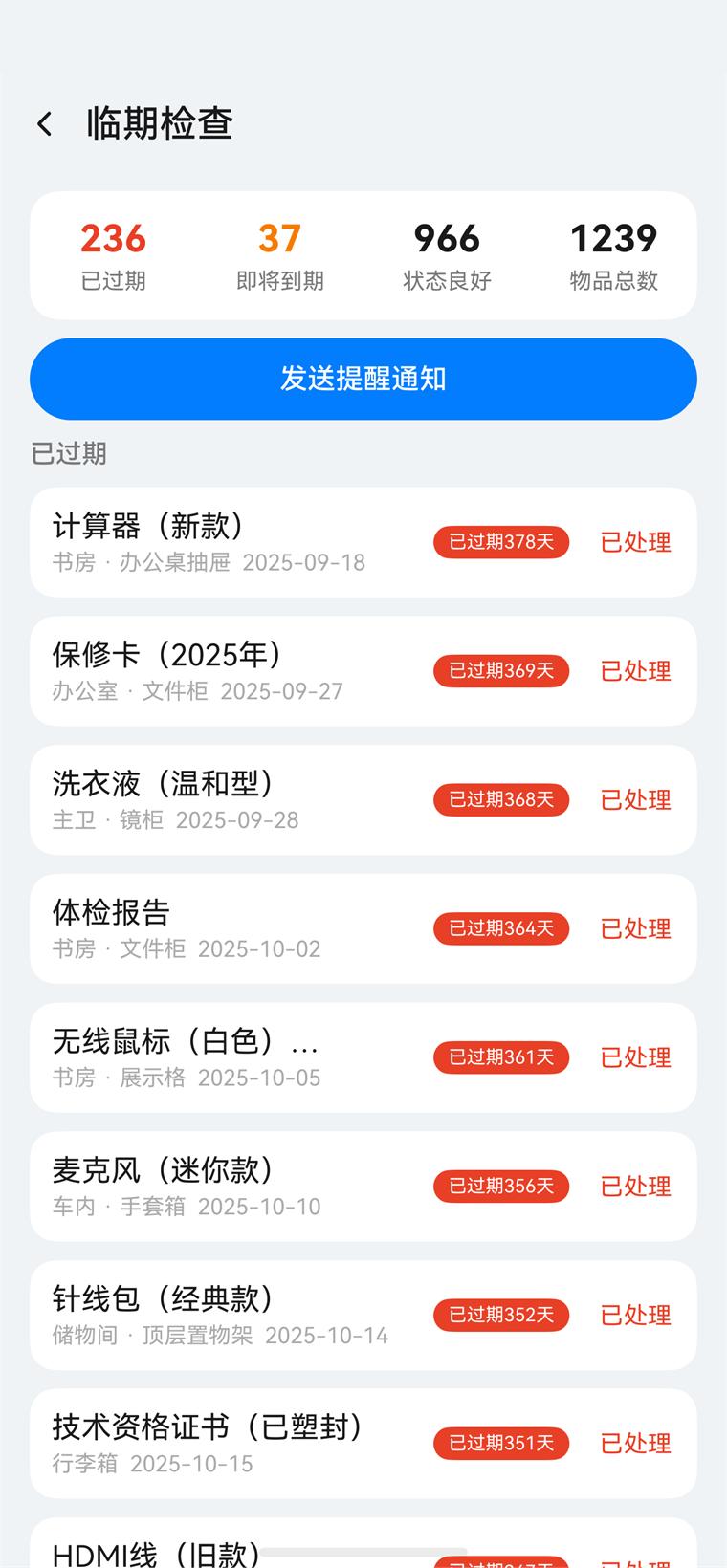
Mine → Check expired items opens the expiry check page; so does the banner at the top of Mine reading “N expired · M expiring soon”. The page offers:
- Four totals: expired, expiring soon, in good shape, total
- Send reminder notifications: push an expiry reminder to the relevant items in one tap; the notification lists them
- Grouped detail: grouped into Expired and Expiring soon, sorted by days remaining
- Done: marking an item handled also clears its batches, photos and calendar event
Calendar reminders
Once Expiry date is on in the item editor, that item's reminder can be written to the system calendar. Mine → Calendar reminders opens a centre where you can review and manage everything that has been synced.
Permissions: calendar reminders need calendar access; taking or picking photos needs camera and photo access. Each is requested only when you first use the matching feature and can be revoked in system settings at any time, without affecting the rest.
Proxy reminders: with expiry notifications on, the app schedules system proxy reminders around the due date, so you are notified without opening it. Editing an item re-syncs the schedule automatically.
05Statistics
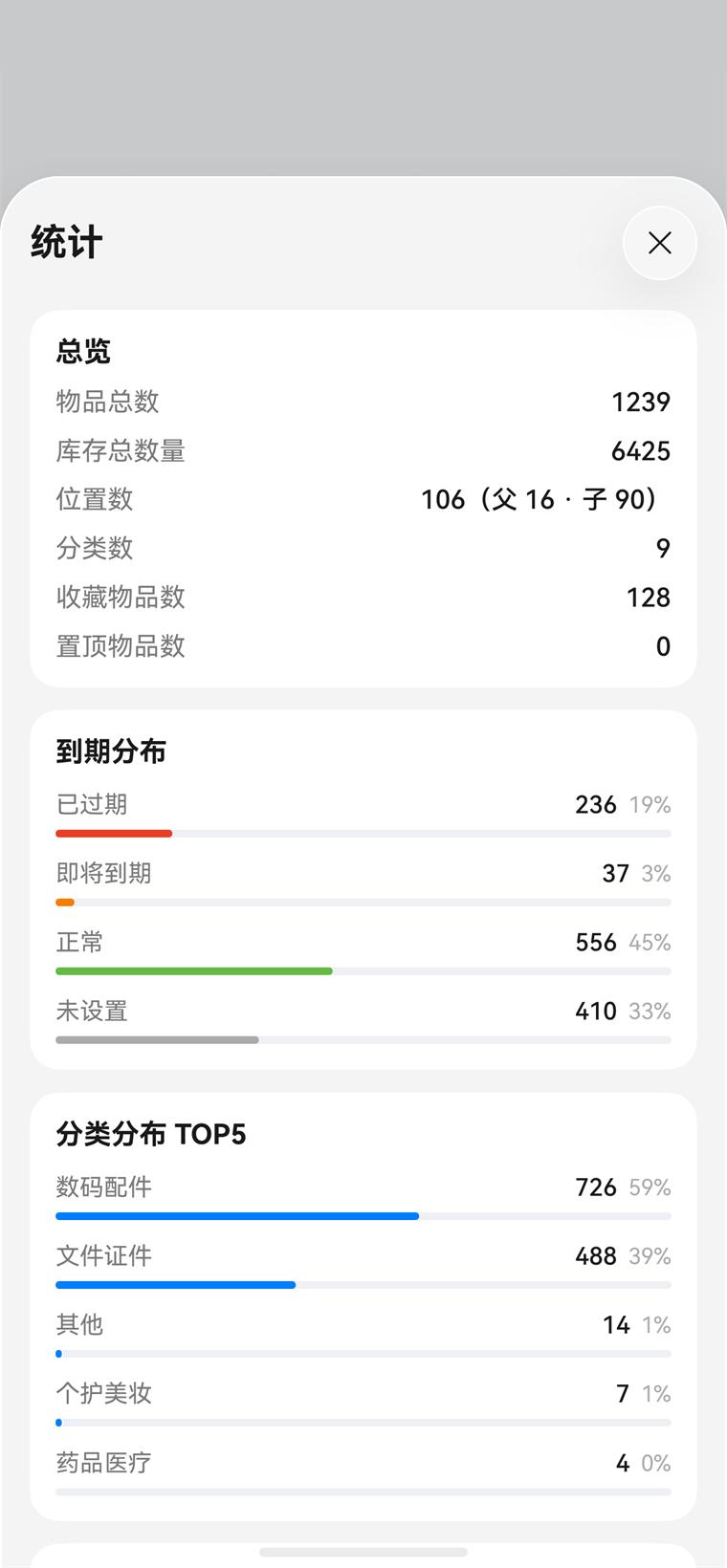
Tap Statistics on the home page to open the panel and see the shape of your inventory at a glance.
| Section | Contents |
|---|---|
| Overview | Total items, total stock, number of places (counting parents and children), number of categories, favourites and pinned items |
| Expiry distribution | Counts and shares for expired, expiring soon, in good shape and no expiry set |
| Top 5 categories | The five categories holding the most items, and their shares |
| Top 5 places | The five places holding the most items, and their shares |
06Backup and migration
Your item data stays on the device by default. Trace offers a full backup for backing up, changing phones and keeping several devices in step.
Exporting a backup
-
Go to data transfer
Mine → Data transfer → Export data.
-
Choose where to save
Pick a folder in the system file picker; the file is named something like
trace_backup_20261001-0816.trace. -
Wait for it to finish
Do not close the app while it exports; progress shows on the button and in the notification shade.
Importing a backup
-
Go to data transfer
Mine → Data transfer → Import data.
-
Choose the file
Select the backup file in the picker; legacy JSON backups are supported too.
-
Wait for the merge
Imported records merge automatically with what is already on the device; nothing is overwritten. Records with an ID that already exists are skipped, so the same backup file can be imported twice without creating duplicates.
Note: do not close the app during an import or the transfer will be interrupted. Progress is mirrored in the notification shade.
System backup
The app registers with the system backup extension (EntryBackupAbility), so once you turn it on in the system backup settings its data is saved and restored along with everything else.
08Mine and account
Mine collects the account, reminders, data management and sharing settings.
Account
Sign in with a Huawei Account to sync your avatar and nickname; nothing local needs it
Reminders
Expiry notifications, the expiry threshold, expiry check and calendar reminders
Data management
Manage places, categories, icons, units and reminder lead times
Data transfer
Export a backup file, or import data from one
Smart grip
The floating button and bottom dock follow the hand you are holding the phone in
Sharing settings
Sharing quality, max items per share and max package size
About the account
Signing in with a Huawei Account is optional. It identifies you and links your feedback history when you submit feedback; your avatar and nickname are shown on this device only. Without signing in, every local feature — items, places, categories, reminders, backup and sharing — works exactly the same.
Agreements: Mine links to the User Agreement and the Privacy Policy. The first time you sign in you are asked to read and accept the User Agreement, the Privacy Policy and the Huawei Account authentication agreement.
09Feedback
Found a problem or have an idea? Send it from Mine → Feedback; you get a red dot once the developer replies.
Sending feedback
-
Sign in with a Huawei Account
Feedback needs a Huawei Account so replies can be linked to your history.
-
Pick a type and write it up
Types are Feature idea, Problem, Usability and Other; you can write up to 1700 characters. Attach screenshots if you like (a few, each within a size limit, JPG/PNG/WEBP only), and optionally include the app log to help pin down the problem.
-
Send it and follow up
Watch the upload progress in the notification shade; failed uploads retry on their own. My feedback shows the status (pending / replied / closed) and the developer's reply.
How feedback closes the loop
- Pending feedback keeps syncing; once the developer replies a red dot appears on the Feedback entry
- If the reply does not settle it, add more and the developer can respond again
- When the issue is resolved you can close it; closed feedback is deleted automatically after 7 days
- A long submission can be withdrawn, and a withdrawn one is never uploaded
10FAQ
Where is my data stored? Can I lose it?
Items, places, categories and photos live in the app's sandbox on the device and are never uploaded. Uninstalling the app or clearing its data will lose them, so export a backup regularly and turn on system backup.
How do I move to a new phone?
Export a backup from the old phone under Mine → Data transfer → Export data, move the file to the new one (file transfer, cloud drive, messaging app — whatever you use), then choose it under Import data. You can also tap-to-share items across one at a time or in bulk.
Why is the near-expiry badge not what I expected?
Near-expiry depends on two settings: the global Expiry threshold and the per-item Expiry reminder lead time. A per-item value overrides the global one. Items with several batches are judged by their earliest-expiring batch.
I did not get an expiry notification
Check, in order: ① is Mine → Expiry notifications on; ② does the system allow Trace to send notifications; ③ are background running or notification permissions restricted. Proxy reminders do not need the app in the foreground, though some power-saving modes can delay background work.
Why did my item count not change after importing?
Importing merges: records whose ID already exists are skipped rather than added again. If the backup came from this same device, nothing changes — that is normal de-duplication.
Where do the items go when I delete a place?
They are not deleted — they become Unfiled, and you can find them on the Items page with the advanced Unfiled filter.
Smart grip does nothing
It depends on the device's sensing hardware and only some models support it. Unsupported devices degrade quietly and nothing else is affected. Mine → Smart grip shows whether the switch is on.
Do I have to sign in?
No. Only sending feedback needs a Huawei Account; everything else runs locally.
AppendixAgreements and notices
These documents are hosted on the same domain and can also be viewed in the app. They are published in Simplified Chinese, which is the authoritative version.
- Legal centre: the hub for every agreement and notice
- Trace User Agreement
- Trace Children's Privacy Notice
- Trace Privacy Policy
Feedback and contact: use Mine → Feedback in the app, or email solitude@hraulein.com; replies usually arrive within fifteen working days.